

-
Bring your PC and console games to Mac
Learn how to port your existing Windows and console games to Apple silicon devices using tools like Metal and the Game Porting Toolkit. Explore the techniques that can help you accelerate and streamline your porting workflows, and get your game running across the entire Mac lineup.
This session was originally presented as part of the Meet with Apple activity “Press Start: Game development on Apple platforms.” Watch the full video for more insights and related sessions.资源
相关视频
WWDC25
-
搜索此视频…
Hi there. My name is Rich Forster and I'm here to talk to you about bringing your game and its renderer to Metal. I'm assuming you have a PC or console game, and you want to make it part of the growing catalog of titles on Mac. Bringing your game to Mac means that you can target a range of devices with the common foundation of Apple Silicon. This is inZOI, by the way. Apple Silicon means that you have a strong baseline of advanced rendering features, and knowing the capability of each device, you can give your players tune settings for their Mac.
Porting your windows game to a whole new platform typically involves many steps before you even see your first scene running, including recompiling all your source code, converting thousands of shaders from HLSL, reimplementing your graphics subsystem, and converting your use of audio input HDR and display All before you see your first scene running natively on the device. And then finally debugging and optimizing for performance before you release. With the help of the Game Porting Toolkit, you can now see your game's first scene running on the platform much earlier. And I'll also show how the Game Porting Toolkit help simplify some of the other porting steps too. But first, you have a windows game, so let's work out how we run it on Mac.
Earlier today, Alan talked about how the Game Porting Toolkit includes an emulation environment so that you can experience how well your game runs on Mac.
The evaluation environment means remedy could use the Game Porting Toolkit early in the porting process to evaluate how well their game Control would run on Apple Silicon.
With this, they were able to then experiment and find out how technologies like MetalFX would help them improve the performance of Control.
The best way to test your game on Mac is to use the Game Porting Toolkit through Crossover. Running your game is as easy as copying it into Crossover and running it. For example, for remedy to run control, the first step is to copy the game into a bottle. In Crossover, a bottle is what Crossover uses to store windows applications.
In this video, control is copied into a Windows 11 bottle, and once the app is in a bottle, you can create a shortcut to the executable and then run it from Crossover.
When the game starts running, it's using Game Porting Toolkit to provide the windows emulation and the game is able to run on Mac.
Just like that, the emulation environment of the Game Porting Toolkit translates your windows binary and its use of windows APIs for input audio networking, file system use, and of course, graphics.
All the graphics features such as GPU-driven pipelines, SIMD operations, and even older features such as Tessellation and geometry shaders are all supported and translated.
Once you know, your game can run really well on Apple Silicon without any code changes. Let's talk about how Game Porting Toolkit simplifies your porting journey. Then a core part of porting the rendering will be learning about Metal. So I'll introduce you to what Metal is, what it can do, and I'll make sure you have all the information you need to get started with your port.
So let's go back to the porting Timeline to see where to start. The first step is putting your source to build for Mac to get graphics on screen starts with porting your renderer source code. Metal is an Objective-C API.
If you've not used Objective-C before, it can seem like there's a lot of extra work here, right? Like including a whole new language. This is where Metal-cpp comes in. Metal-cpp is a lightweight C++ wrapper. I say it's lightweight because it's implemented as a header only library with inline function calls.
It provides 100% coverage of the Metal API, implementing a 1 to 1 mapping of C++ calls to Objective-C APIs, and Apple is committed to maintaining and updating this library along with the latest Metal APIs.
It's open source under the Apache two license, so you can modify the library and include it into your game easily.
So you're probably wondering how does Metal-cpp even work? Metal-cpp uses C to call directly into the Objective-C runtime. This is the exact same mechanism that Objective-C compiler would use to execute Objective-C methods, and within Lightning, this results in no overhead relative to the same Objective-C code.
Since Metal-cpp implements a 1 to 1 mapping of C++ to Objective-C calls, it gives you memory management control. Like direct, Xcode includes lots of tooling to help you validate your object lifetimes and find any leaks.
And this 1 to 1 mapping also allows all of the Metal developer tools to work seamlessly with your Metal-cpp code.
And now that you know that you don't need to learn a whole new language to port your renderer, let's talk about all of those HLSL shaders that you use to render your game To write shaders for Metal, you use the C++ based Metal Shading Language at runtime, you use functions from metal libraries to create the shader pipelines you use for rendering and dispatching compute work. The metal compiler takes your source and converts it to a metal library to use at runtime.
Starting with HLSL shaders and getting to a metal library used to be a complex chain of libraries and tools, and a limited feature support. Metal Shader Converter massively simplifies this process and exposes many more features for HLSL files. Use the DXC compiler to compile your HLSL shader to create a DXIL file.
Then the Metal Shader Converter uses that DXIL file to create your metal library.
Metal Shader Converter consumes DXIL to produce metal. Use it alongside. Alongside the open source DXC compiler tool to build an end to end shader pipeline, converting from DXIL to Metal is very fast because Metal Shader Converter performs the conversion at the binary level. It also enables you to leverage advanced features of Apple GPUs such as Mesh Shaders and Raytracing pipelines, as well as all of the tools that support Metal development.
Converting your shader using the command line tool is very easy. After you set up DXC and shader converter, start by compiling your HLSL shader to DXIL.
DXC requires you to specify the entry point to compile the type of shader and the output file. Next, cool shader converter on the DXIL file just created and specify the Metal library to create.
By default, shader converter generates a Metal library with the latest version of Mac OS, as well as a JSON file with useful reflection data at runtime. You pass this Metal library to the Metal device to load it and build pipeline state objects while using the command line is great for individual shaders. Metal Shader Converter provides a dynamic library with a C interface on Mac OS and windows.
This will help you get started quickly by letting you convert shaders at runtime during development, and then you'll be able to move all of the conversion offline and do it ahead of time with your asset pipeline tools.
But porting those shaders isn't just converting them from HLSL to Metal libraries. There's also the work of preparing to execute those shaders at runtime. Metal Shader Converter provides a runtime that helps with a lot of the common tasks, reducing the porting effort.
This includes handling a range of binding models based on how your renderer passes parameters to your shaders, as well as how to execute your shaders in the most efficient way, like translating shaders to other stages such as Tessellation as Metal Mesh Shaders to improve performance, and then to help you adopt shader converter and its runtime. There's a set of simple examples the porting Raytracing pipelines and porting ray query pipeline samples show how to port Raytracing, depending on whether you're using ray tracing pipelines or jQuery.
The porting Tessellation geometry and instancing pipeline sample shows the more complex use cases of HLSL geometry and tessellation shaders using metals, mesh shading, API and the Function Constants and Framebuffer Fetch sample show you how you can access Apple Silicon specific features from HLSL.
The Get Started with Metal Shader Converter page has a lot more detail on Shader Converter and its runtime. This details on which shader model features are supported. Lots of reusable example code snippets. Performance tips as well as links to those samples.
So now that we know the Game Porting Toolkit helps with the source code you already have. Let's talk about Metal.
As Alexei said earlier, Metal is Apple's low level graphics, compute, and machine learning API. It is powered multiple generations of complex applications, including the latest games, and this year we introduced Metal 4. Metal 4 is built with the next generations of games, graphics, and compute apps in mind.
It unlocks the full performance potential of Apple Silicon, while ensuring you'll find it familiar and approachable. If you're coming from other graphics or compute APIs like DirectX.
Metal 4 is supported on devices equipped with the Apple M1 and later, as well as the A14 Bionic found in the iPhone 12 and later.
I'll start by introducing you to the fundamentals of how metal works.
Metal is how your application on the CPU communicates with the GPU.
The first advantage of Apple silicon is that the CPU and GPU have access to the same large pool of high speed unified memory, so you're not constrained by a separate memory pool for the GPU.
This means all your buffers and textures are stored in that large pool, and can be accessed from CPU or GPU.
You send work to the GPU with a command queue.
You encode the work into command buffers to commit to the queue. Encoders fill the command buffer with work for the GPU. Metal has encoders for compute, render, and machine learning and each of those draws or dispatches in an encoder can reference your buffers and textures for inputs and outputs.
So your compute can read buffers and textures, generate new buffers that can then drive your rendering to generate an intermediate image that is passed with additional buffer of information to your encoder to generate your final image.
And while that covers the basics of how Metal works, and hopefully everybody has an initial understanding, Metal provides a wide range of features built upon that foundation to take advantage of. Apple Silicon. Metal supports the modern features that you depend on from other APIs, whether you're using the GPU to drive your rendering with Indirect Draws and dispatches, or taking full advantage of blindness resources with Sparse Memory Management, or rendering detailed geometry with Mesh Shaders and Raytracing. Similarly, Metal also supports features that are specific to Metal and Apple Silicon GPU architecture to take advantage of. These will typically require extending your renderer. But as I mentioned earlier, Metal Shader Converter already supports Apple Silicon specific features like function specialization and Framebuffer Fetch. And there's that sample if you want to find out more.
As you start to use Metal, you'll find that there's a strong focus in its design to make it easy to use. There's a goal to make the overhead of the API as low as possible, while ensuring that the default behaviors make it simple to develop in Metal.
However, to reduce CPU overhead, you can choose a path with more control, and this is where Metal 4 comes in. Metal 4 focuses on the best CPU performance for the API and aligns closer to other APIs like DirectX and Vulkan.
For example, you can choose to use Metal 4 and manage your own resource synchronization, or get started with an earlier version of Metal that handles resource synchronization for you. And to help with your adoption, Metal provides a suite of tools.
Once you start putting to Metal and your code is compiling, the next thing you need to know is that you're using Metal correctly, right? Metal API validation checks your use of the API on the CPU side, making sure that your descriptors are correctly configured and your commands are correctly encoded. Metal shader validation checks your use of the GPU, ensuring that your shader inputs are set correctly and that your shaders don't invoke any undefined behavior.
This also includes support for those HLSL shaders that you converted with Metal Shader Converter.
Both validation mechanisms will stop execution of your game and point the debugger at the location of any fault, whether it is in your game or shader code.
Metal API. Validation is enabled by default in a new project. If you need to enable it. The setting is in the Scheme editor under the diagnostics tab and the checkbox underneath enable shader validation.
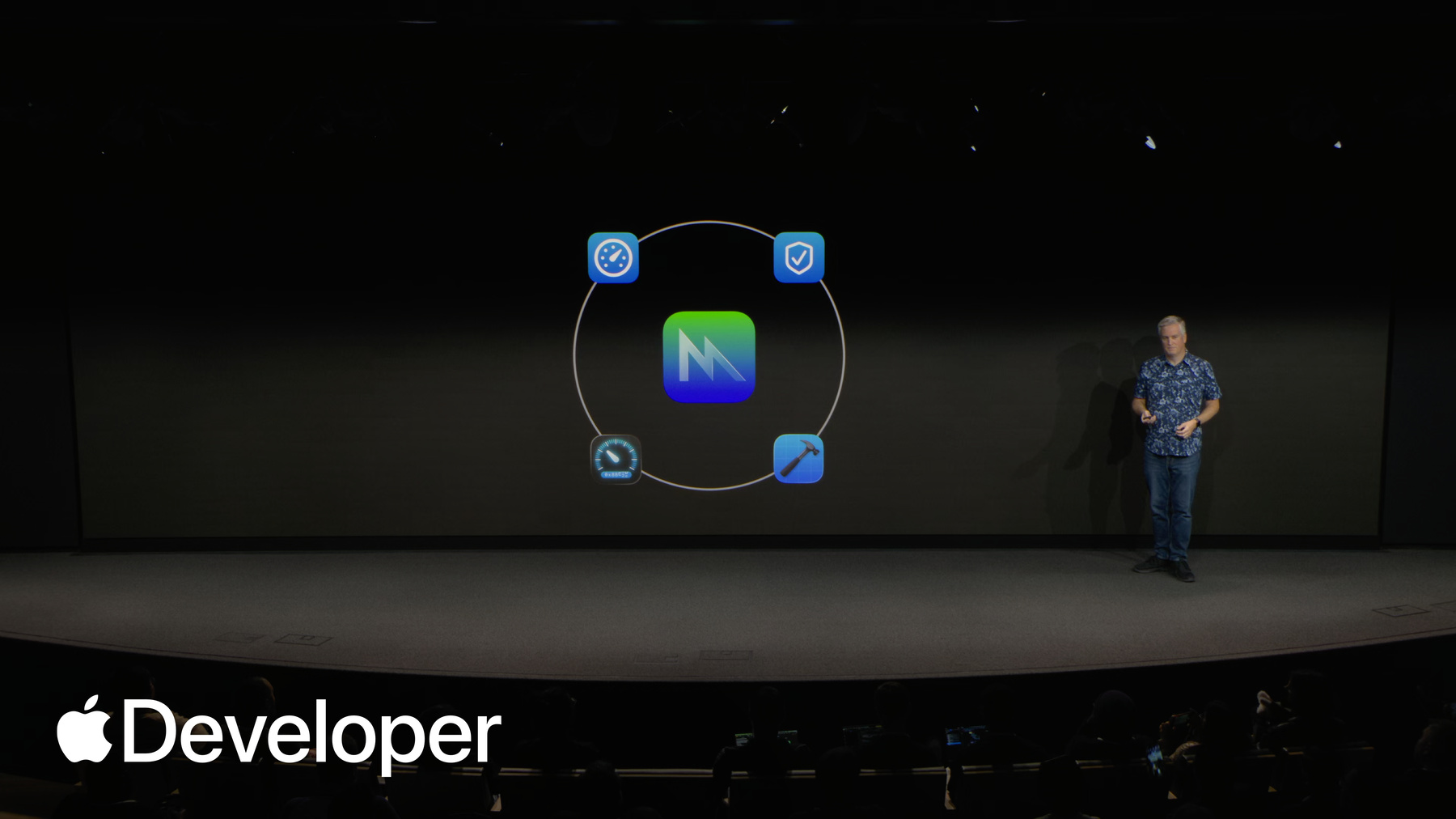
Once your game is rendering happily without any validation issues, you can move to the debugging and optimizing stage. Metal Debugger and Xcode enables you to do step by step debugging in case one of the pixels looks or feels wrong. When everything is looking good, the Metal Debugger and Xcode gives you insights into possible optimizations, and it shows you detailed profiling data for your GPU work to help you optimize further.
Getting into the Metal Debugger is a breeze when your app is running. The Metal logo appears in the debug bar. Clicking this button reveals a popover for configuring capture settings, and the capture button brings you to the Metal Debugger.
The summary page provides an overview of the Metal workload, with some statistics and insights. To better understand the structure of the workload, use the dependencies viewer. This visualizes the workload in a graph. Starting from a bird's eye perspective. You can zoom in and see the various passes and their output resources in a short amount of time. You can scan across the entire workload, and when you find areas of interest, you can seamlessly take a closer look. As you zoom in, the graph fades in additional details like all the resource attributes, and when there are visual artifacts, you can follow the graph upstream to find the source of the problem. And then when you narrow down the issue to one pass or even a specific draw call in a render pass, you can dive in even deeper.
Once you're at that draw call, you can start. You can start to debug that pixel that feels or looks wrong or say you're at a compute dispatch. You can also choose to debug one thread in the attachments viewer. You can zoom in, select one pixel, and then click the debug button in the bottom right corner to start the shader debugger.
The shader debugger enables stepping through the shader source code line by line. The variable sidebar on the right shows a quick preview of all of the variable values at each stage.
Unlike traditional debuggers, it can capture the full history so you can move both forwards and backwards, and the navigator shows the lines of code that run for that pixel as well as the function calls. And then when there are four loops, you can see the variable values at each stage through the loop. Iterations two.
Sometimes you might find it useful to inspect the values from the surrounding pixels running the same shader. Clicking the preview button on the right visualizes the values from those neighboring threads in line with the source, and alongside runtime validation and Xcode's Metal Debugger helping you through your porting journey. The performance HUD and Instruments will help you stay on top of performance after porting. My colleague Lionel will be talking about those tools later in the performance session.
And all of these tools are a fundamental part of what makes Metal Metal, and will help you get the best out of your game on Apple Silicon.
And now that you know more about Metal and all the tools to help you port, let's talk about where to get started and find more information. I think the first thing you're going to want to do is start with a mac app that you can add your code to if you want to start from a basic application. Skeleton Xcode 26 includes built in templates, including a game template that supports Metal 4 as the rendering technology, and provides implementations for a range of Apple platforms. To give you the basis for your own game, if you want something more detailed, let's go back to the Game Porting Toolkit.
Earlier today, Alan showed the game porting sample code included in the Game Porting Toolkit. The sample consists of an interactive tutorial taking you step by step through the main elements of the porting process. The example game that ships in this package makes a great basis for your game, and you can reuse or replace each of the subsystems in the example. And there are several sections you should really look at for more detail on porting your renderer. The first is the shader conversion and loading sections. These sections start from HLSL files, compile them, convert them, and then load them into the game project.
The shader conversion project shows step by step how you convert HLSL shaders using the Xcode build system, while the shader loading project shows you how to load the converted shaders into your game. What I really like about this example is that loading the shaders considers the best way to do it for a game, assuming that your shaders are part of a larger package file system that you ship with your game. Whereas most samples like load Metal shader libraries from loose files.
Once the libraries are loaded, the shader loading project shows how to create shader pipelines from shaders in the libraries.
The other important section for porting your render is the Metal rendering section. The great thing about this section is how it covers practical issues and considerations that can come up when porting, such as how to integrate the Metal Shader Converter runtime with explanations of the resource layout options and metals residency model.
Then there's details about how to manage your render thread, how to organize your rendering into passes and achieve the best performance on Apple Silicon, and how to port your GPU-driven indirect rendering.
The whole Readme is full of links to wider documentation, and the sample code gets all the rendering technologies in place before bringing it together for the final game.
And then whether you start with a game template or the game putting sample code, once you have your game running, there's a range of Metal samples that show the best implementation of Metal features to help you integrate those features into your game. For example, achieving smooth frame rates with metals Displaylink shows how to use metal displaylink to give you more control of the pacing of your games frames to minimize latency. Rendering a scene with Deferred Lighting has implementations in Objective-C, C++, and Swift to let you pick the language you prefer. It shows how to use Apple Silicon specific features to implement a renderer with Deferred Lighting rendering reflections in real time. Using ray tracing. Implements a Hybrid renderer that draws the scene using rasterization, and then creates ray traced reflections to apply to the scene's reflective surfaces. And then my favorite modern rendering with Metal uses metal's advanced features such as Indirect Command Buffers Sparse Textures variable rate rasterization to implement Modern Rendering algorithms. This sample demonstrates effects like GPU based mesh culling, tile based Deferred Lighting, ambient occlusion, volumetric fog, and cascaded shadow maps.
I really recommend you take a look at the Metal sample code page. There's a lot of inspiration in every Metal sample to keep you warm as you adopt Metal.
But let's remember where we started with Game Porting Toolkit evaluation environment. You can run your PC game on Mac today.
Metal-cpp and Metal Shader Converter will help you get started with Metal in your renderer, and Metal supports all of the features you need to port and enhance your game for Apple Silicon, with a strong suite of tools in the background to help you, and then Metal samples and documentation are there to support you on your Metal journey.
And while I've covered getting your renderer running on Mac, my colleague Lionel will tell you more about improving the performance of your game and getting it running on iOS. Thank you. Over to you, Lionel.
-